Yes, we have a mobile app.
You may install the Triage mobile site as a Progressive Web App.
Go to https://app.exponentialcare.ai/
On an iPhone:
To save a website URL as an app icon on your iPhone's home screen, open the website in Safari, tap the share button, scroll down, and tap "Add to Home Screen," then customize the name and icon, and finally tap "Add".
Here's a more detailed breakdown:
Steps to Save a Website as an App Icon on iPhone:
Open Safari and Navigate to the Website:
Open the Safari browser on your iPhone and go to the website you want to save as an app icon.
Tap the Share Button:
Tap the share button, which looks like a square with an upward-pointing arrow, located at the bottom of the screen.
Scroll Down and Tap "Add to Home Screen":
Scroll down the list of share options until you see "Add to Home Screen" and tap it.
Customize the App Name and Icon (Optional):
Name: You can change the name of the app icon by tapping the default name and entering a new one.
Icon: The icon will likely default to the website's favicon, but you can customize it if needed.
Tap "Add":
Once you're happy with the name and icon, tap the "Add" button in the top right corner.
Access the Website Shortcut:
The website shortcut will now appear on your home screen, just like any other app
On an Android:
Open Chrome: Launch the Chrome browser on your Android device.
Navigate to the Website: https://app.exponentialcare.ai/
Tap the Menu Icon: Tap the three-dot menu icon located to the right of the address bar.
Tap "Add to home screen": Select the option "Add to home screen" from the menu.
Choose the option to Install:
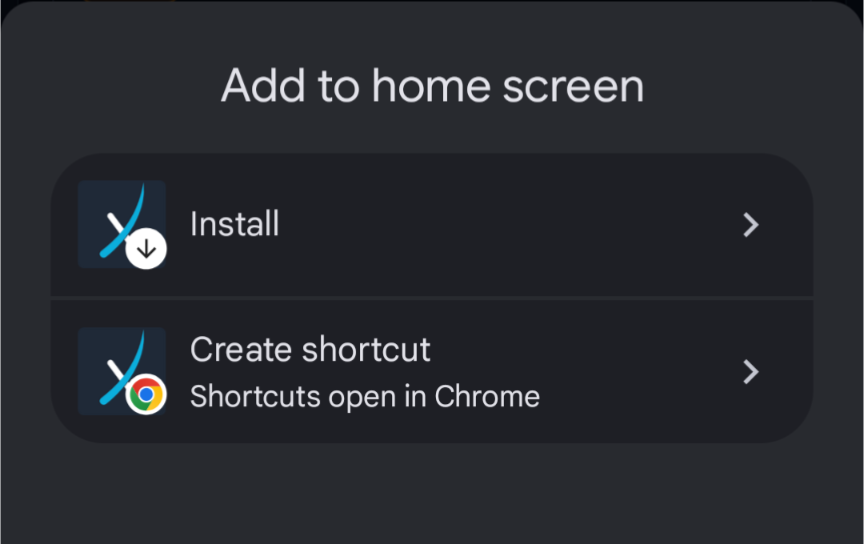
Confirm Installation: Chrome will add the website shortcut to your home screen.
Access the Shortcut: The site will now behave as an installed app on your phone.
